✒️ 2025-06-23 11:50 내용 수정
웹 브라우저가 알려주는 HTML 요소에 대한 사건의 발생
이벤트 객체(event object)
특정 타입의 이벤트와 관련있는 객체이며, 해당 타입의 이벤트에 대한 상세 정보를 저장한다.
모든 이벤트 객체는 이벤트 타입을 나타내는 type property와 이벤트 대상을 나타내는 target property 를 가진다.
Java에서 ActionEvent, ItemEvent, MouseEvent 클래스들과 비슷하다.
target property는 Java에서 ActionEvent.getSource() 등으로 참조하여 얻은 객체와 비슷하다.
마우스 이벤트
이벤트
설명
click요소를 클릭했을 때 발생
dbclick요소를 더블 클릭했을 때 발생
mouseover마우스가 요소에 들어올 때(오버할 때) 발생
mouseout마우스가 요소에서 나갈 때(아웃할 때) 발생
mousemove마우스가 요소 위에서 움직일 때 발생
mousedown마우스를 눌렀을 때 발생
mouseup마우스를 떼었을 때 발생
contextmenucontext menu(마우스 우클릭 메뉴)가 나오기 전에 발생
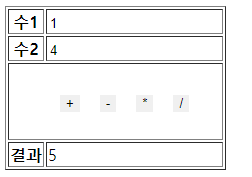
<table border="1px">
	<tr>
		<th>수1</th>
		<td><input id="num1" placeholder="정수만 입력하세요"></td>
	</tr>
	<tr>
		<th>수2</th>
		<td><input id="num2" placeholder="정수만 입력하세요"></td>
	</tr>
	<tr>
		<td colspan="2">
			<ul>
				<li><input type="button" value="+" onclick="calc('+')"></li>
				<li><input type="button" value="-" onclick="calc('-')"></li>
				<li><input type="button" value="*" onclick="calc('*')"></li>
				<li><input type="button" value="/" onclick="calc('/')"></li>
			</ul>
		</td>
	</tr>
	<tr>
		<th>결과</th>
		<td id="result"></td>
	</tr>
</table>

<script>
	function calc(n) {
		let num1 = Number(document.getElementById('num1').value);
		let num2 = Number(document.getElementById('num2').value);
		let num3 = document.getElementById('result');

		if(isNaN(num1) || isNaN(num2)) {
			alert('숫자만 입력하세요.');
			return;
		}

		switch(n) {
			case '+':
				result.innerHTML = num1+num2;
			break;
			case '-':
				result.innerHTML = num1-num2;
			break;
			case '*':
				result.innerHTML = num1*num2;
			break;
			case '/':
				result.innerHTML = num1/num2;
			break;
		}
}
</script>
키보드 이벤트
참고 자료 : mdn web docs keyboard event key values
이벤트
설명
keydown키를 눌렀을 때 발생
keyup키를 떼었을 때 발생
keypress키를 누른 상태일 때 발생
키 이름
event.key 값설명
문자 키
"a" ~ "z"소문자 (Shift 키와 함께 누르면 대문자)
숫자 키
"0" ~ "9"숫자 키 (상단 숫자열)
Enter
"Enter"엔터 키
Space
" "스페이스바 (공백 문자)
Backspace
"Backspace"백스페이스 키
Tab
"Tab"탭 키
Shift
"Shift"Shift 키
Control
"Control"Ctrl 키
Alt
"Alt"Alt 키
Escape
"Escape"Esc 키
Delete
"Delete"Delete 키
화살표 키
"ArrowUp"위쪽 화살표 키
"ArrowDown"아래쪽 화살표 키
"ArrowLeft"왼쪽 화살표 키
"ArrowRight"오른쪽 화살표 키
Function 키
"F1" ~ "F12"기능 키
Caps Lock
"CapsLock"Caps Lock 키
Insert
"Insert"Insert 키
Home
"Home"Home 키
End
"End"End 키
Page Up
"PageUp"Page Up 키
Page Down
"PageDown"Page Down 키
Num Lock
"NumLock"Num Lock 키
Scroll Lock
"ScrollLock"Scroll Lock 키
Print Screen
"PrintScreen"Print Screen 키
Context Menu
"ContextMenu"컨텍스트 메뉴 키
Meta (윈도우/커맨드)
"Meta"Windows 키 (Win) 또는 Command 키 (Mac)
식별 불가능한 키
"Unidentified"키를 식별할 수 없는 경우
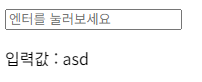
input에 내용을 입력하고, Enter 키를 눌렀을 때 내용을 화면에 표시한다.Enter 키를 누른 뒤엔 input의 내용을 제거한다.
<input type="text" id="inputBox" placeholder="엔터를 눌러보세요">
<p id="result"></p>

<script>
	const inputBox = document.querySelector("#inputBox");
	const result = document.querySelector("#result");

	inputBox.addEventListener("keydown", (e) => {
		if (e.key === "Enter") {
			const content = inputBox.value.trim();
			if (content) {
				result.textContent = `입력값 : ${content}`;
				inputBox.value = '';
			}
		}
	});
</script>
폼 이벤트
form과 input에 대한 이벤트 목록이다.
이벤트
설명
focus요소에 포커스가 이동했을 때 발생
blur요소에 포커스가 벗어났을 때 발생
change요소 값이 변경 되었을 때 발생
submittype=submit 버튼을 눌렀을 때(폼을 제출) 발생
resettype=reset 버튼을 눌렀을 때 발생
selectinput이나 textarea 요소 안의 텍스트를 드래그해서 선택할 때 발생
input입력 요소의 값이 변경됬을 때 발생
<form>의 이벤트에서 form을 제출하는 submit 이벤트는 type=submit인 버튼을 누르면 자동으로 실행된다.
submit 이벤트는 진행되면 자동으로 웹 페이지가 새로고침 되고, 새 URL로 이동한다.
form의 유효성 검사를 진행 방법
form 내의 input에서 input 이벤트의 Callback 함수form의 submit 이벤트의 Callback 함수에서 이벤트의 기본 동작을 막는 Event.preventDefault()를 사용form의 submit 이벤트의 Callback 함수에서 return false를 사용하여 DOM 트리에 이벤트가 전파되는 것을 막는
Event.preventDefault()는 이벤트의 기본 동작을 막고, return false는 이벤트의 기본 동작과 전파를 막기 때문에 상황에 따라 선택해서 적용한다.
const form = document.getElementByTagName("form");

form.addEventListener("submit", (e) => {
	e.preventDefault(); // 자동 제출 방지
});
<script>
function validate(e) {
	// input 값 가져오기
	const num1 = document.getElementById("num1").value;
	const num2 = document.getElementById("num2").value;
	const errorMessage = document.getElementById("errorMessage");

	if (!num1 || !num2) {
		e.preventDefault(); // ✅ 입력이 없을 때만 막기
		errorMessage.textContent = "값을 입력해주세요";
		return false; // ❌ 제출 차단
	}
	return true; // ✅ 유효하면 제출 허용
}
</script>

<form action="/calculate" method="get" onsubmit="return validate(event)">
    <input type="number" id="num1" name="num1">
    <input type="number" id="num2" name="num2">
    <select id="operator" name="operator">
        <option value="+">+</option>
        <option value="-">-</option>
        <option value="*">*</option>
        <option value="/">/</option>
    </select>
    <button type="submit">제출</button>
</form>
<p id="errorMessage">에러 메시지</p>
예제
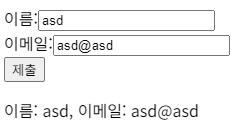
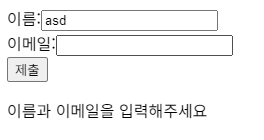
<form id="signup-form">
	<label>이름:<input type="text" id="name"></label><br>
	<label>이메일:<input type="email" id="email"></label><br>
	<button type="submit">제출</button>
</form>
<p id="output"></p>

<script>
	const form = document.querySelector("#signup-form");
	const output = document.querySelector("#output");
	const usernameInput = document.querySelector("#name");
	const emailInput = document.querySelector("#email");

	form.addEventListener("submit", (e) => {
		e.preventDefault();
		const name = usernameInput.value.trim();
		const email = emailInput.value.trim();
		if (name === "" || email === "") {
			output.textContent = "이름과 이메일을 입력해주세요";
			return;
		}
		output.textContent = `이름: ${name}, 이메일: ${email}`;
	});
</script>
윈도우 이벤트
이벤트
설명
load문서나 이미지 등이 로드될 때 발생
unload문서가 언로드될 때 발생
resize브라우저 창의 크기가 변경될 때 발생
scroll문서나 요소가 스크롤될 때 발생
hashchangeURL의 해시 부분이 변경될 때 발생
popstate브라우저의 상태(뒤로가기, 앞으로가기 등)가 변경될 때 발생
abort이미지 로딩이 중단될 때 발생
웹 브라우저를 담당하는 window 객체 에서 웹 문서가 로드될 때 실행되는 onload 메소드를 사용하여 문서가 준비되었을 때 script를 동작하도록 설정할 수 있다.
window.onload = function() {
	// 실행 내용
	// alert("페이지가 로드되었습니다.");
}
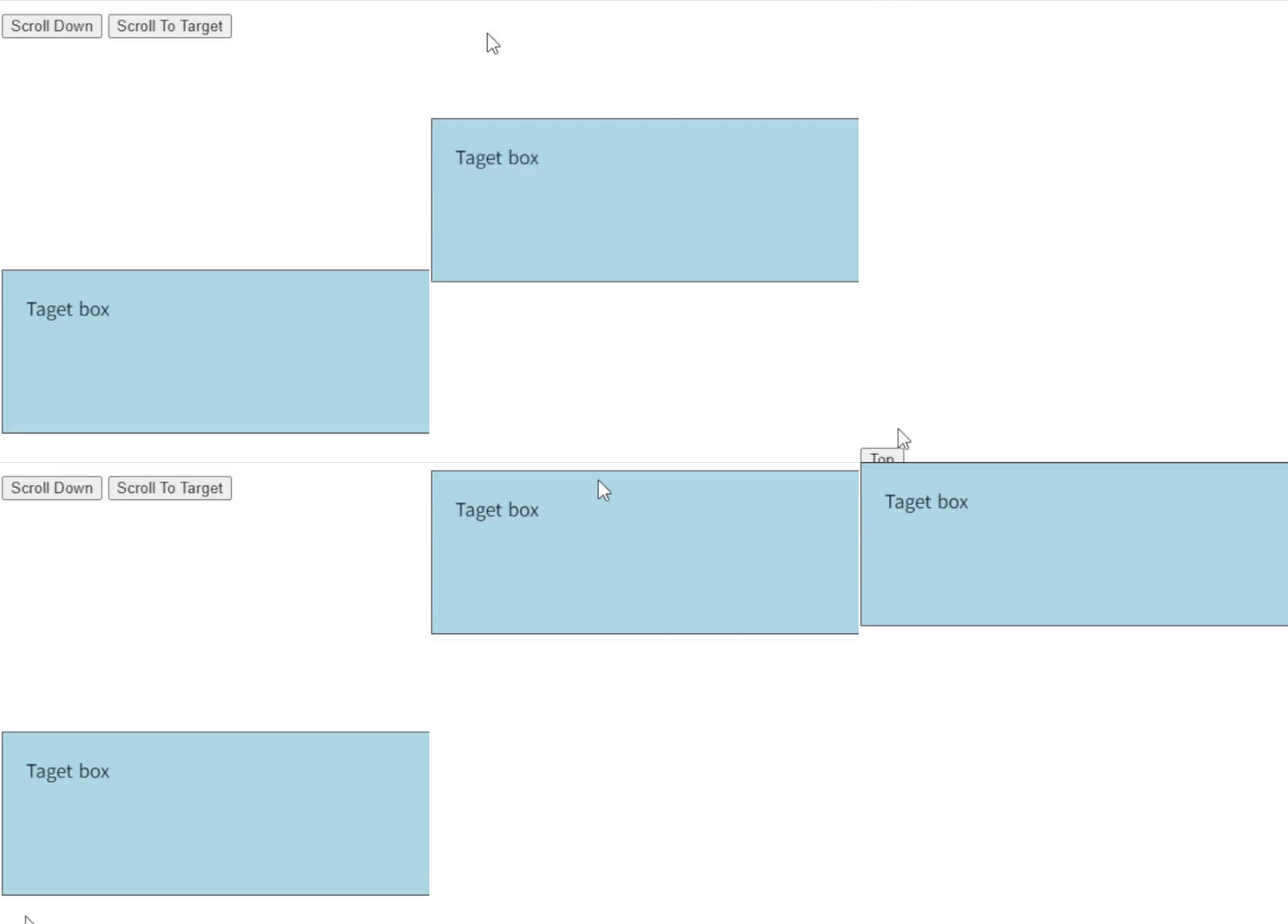
스크롤 이벤트 예시
요소의 높이가 어느정도 있어야 스크롤이 내려가기 때문에 높이 값을 설정해준다.
body{
height: 200vh;
}
div{
height: 200vh;
}
#target {
margin-top: 500px;
padding: 20px;
background-color: lightblue;
border: 1px solid #333 ;
}
가장 밑으로 가는 버튼, 위로 가는 버튼, 특정 위치로 이동하는 버튼을 추가한다.
window.scrollTo({top: position, behavior})를 사용하여 위와 아래로 이동할 수 있다.window.scrollIntoView({behavior})를 사용하여 특정 위치로 스크롤할 수 있다.
<button onclick="scrollToBottm()">Scroll Down</button>
<button onclick="scrollToTarget()">Scroll To Target</button>
<div>
	<div id="target">Taget box</div>
</div>
<button onclick="scrollToTop()">Top</button>

<script>
	// 맨 아래로 이동
	function scrollToBottm() {
		window.scrollTo({
			top: document.body.scrollHeight, behavior:'smooth'
		});
	}
	// 맨 위로 이동
	function scrollToTop() {
		window.scrollTo({top: 0, behavior: 'smooth'});
	}
	// 타겟 위치로 이동
	function scrollToTarget() {
		const target = document.getElementById('target');
		target.scrollIntoView({ behavior: 'smooth' });
	}
</script>
애니메이션 이벤트
이벤트
설명
animationstartCSS 애니메이션이 시작될 때 발생
animationendCSS 애니메이션이 끝날 때 발생
animationiterationCSS 애니메이션이 반복될 때 발생
트랜지션 이벤트
이벤트
설명
transitionstartCSS 트랜지션이 시작될 때 발생
transitionendCSS 트랜지션이 끝날 때 발생
기타 이벤트
이벤트
설명
DOMContentLoaded문서의 HTML이 완전히 로드되고 파싱된 후 발생
errorJavaScript 코드에서 에러가 발생했을 때 발생
beforeunload사용자가 페이지를 떠날 때(창을 닫거나 다른 페이지로 이동) 발생.
fullscreenchange전체 화면 모드로 변경될 때 발생
fullscreenerror전체 화면 모드로 진입을 실패했을 때 발생
DOMContentLoaded : HTML, <script defer src="">와 <script type="module">을 포함한 파일을 모두 다운로드하고 실행한 후 동작을 실행한다.
이미지, 서브 프레임, 비동기 함수의 로딩을 기다리지 않는다. CSS의 로드를 기다리지 않지만 defer 속성의 스크립트는 스타일 시트(CSS)의 로드를 대기하기 때문에 해당 스크립트가 문서 내에 존재하면 DOMContentLoaded도 CSS의 로드를 기다리게 된다.
defer 속성이 없거나 비동기 처리(async)되지 않은(<script>) Javascript는 이미 파싱된 스타일 시트가 로드될 때까지 기다린다.load는 완전히 로드된 페이지만 감지하기 때문에 DOMContentLoaded를 사용하는 것이 더 적절한 경우가 있다.